 MyRemindApp
User Guide
Everything you need to know to never miss an important deadline again
MyRemindAppEverything you need to know to never miss an important deadline again
Open MyRemindApp and tap Create account. Enter your email address and choose a password. A confirmation email will be sent — tap the link inside to activate your account.
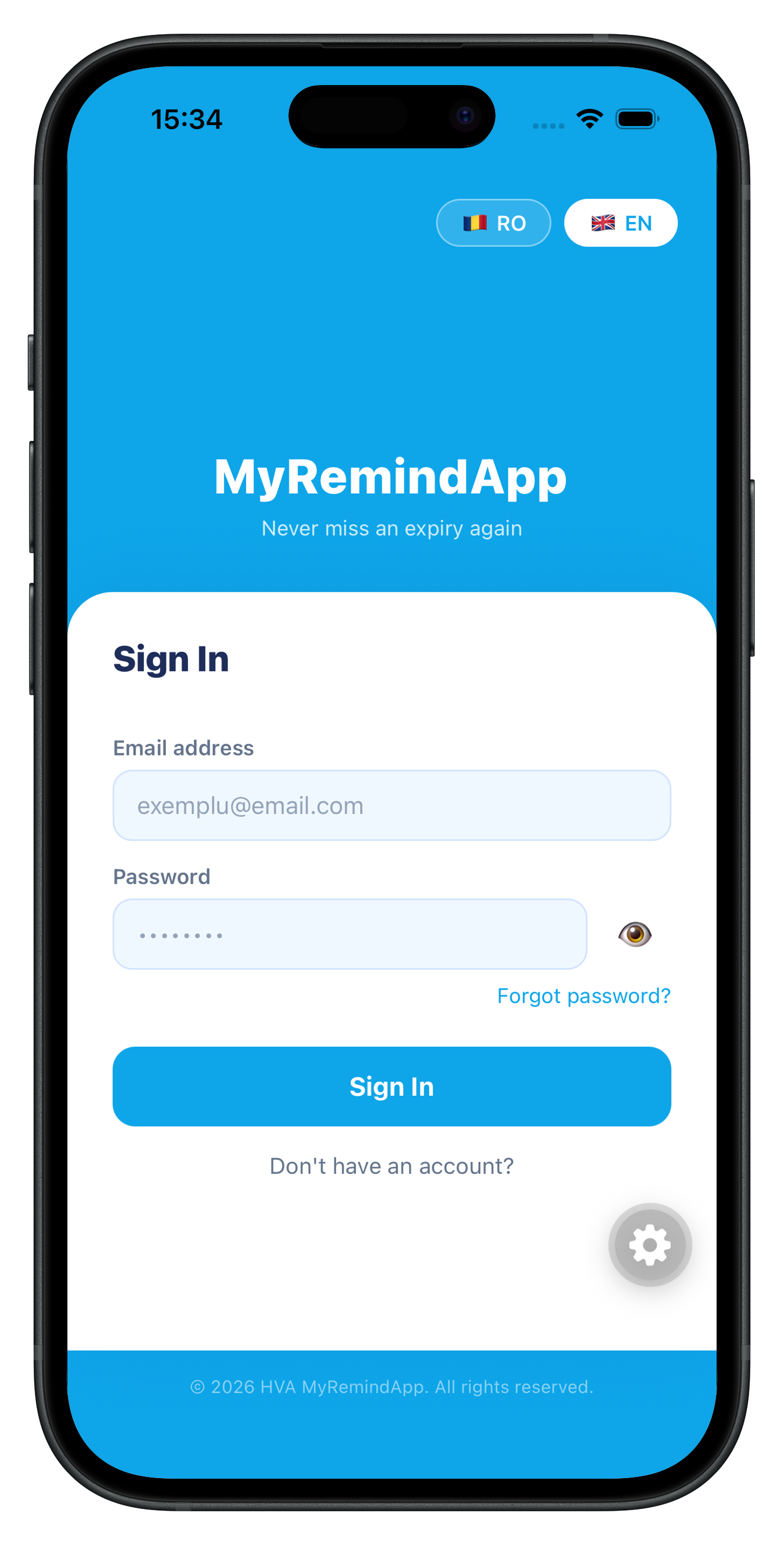
Already have an account? Tap Sign in and enter your credentials. Forgot your password? Use the "Forgot password?" link — you'll receive a reset email at your registered address.
The main screen shows all your active reminders, organized in sections. At the top you'll find a summary card with three key statistics:
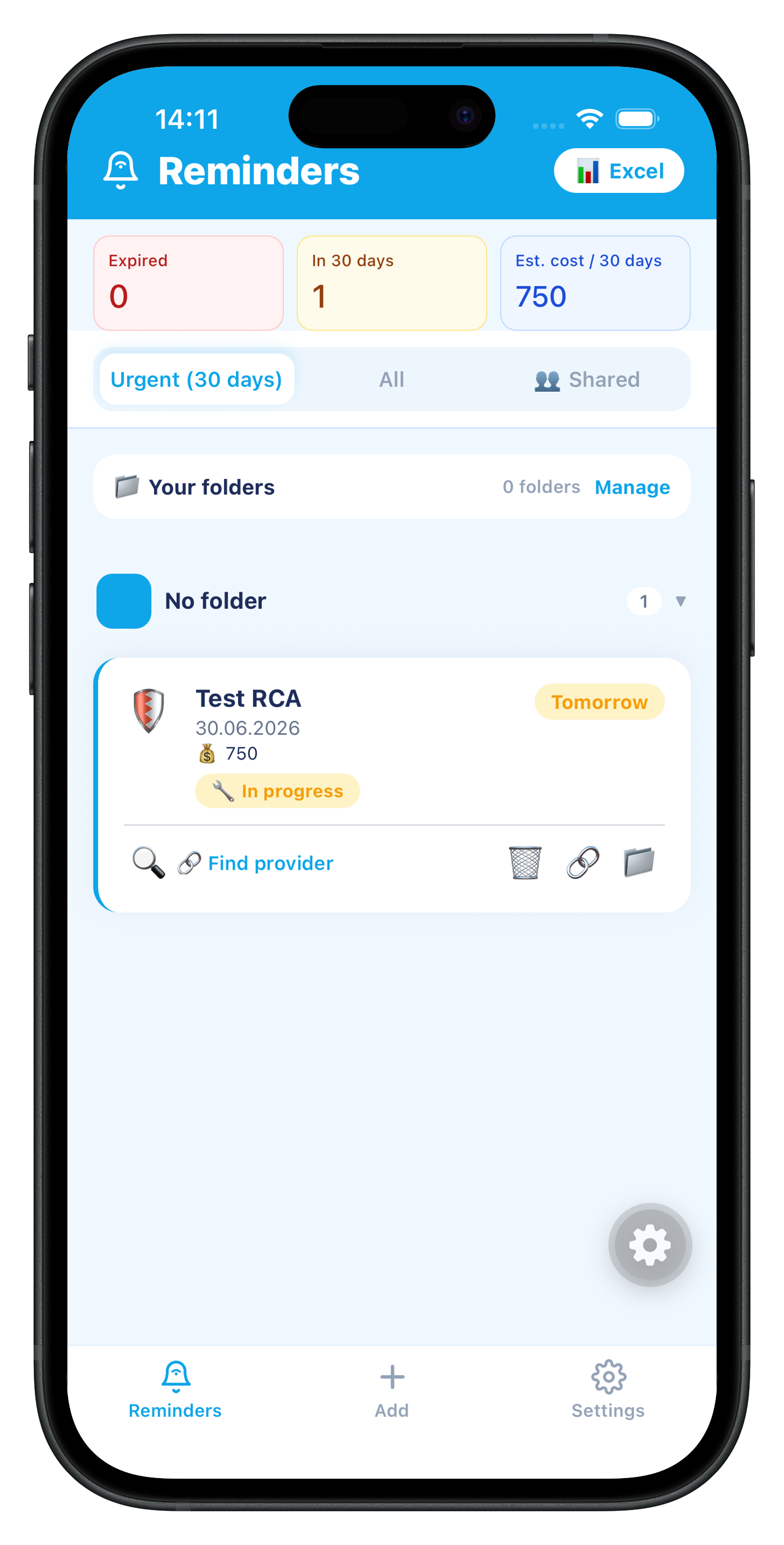
If you have expired reminders, a red pill banner appears at the top: tap it to jump to your full list, then tap 🔄 on any expired card to start the renewal flow.
Each reminder card has a row of action buttons at the bottom:
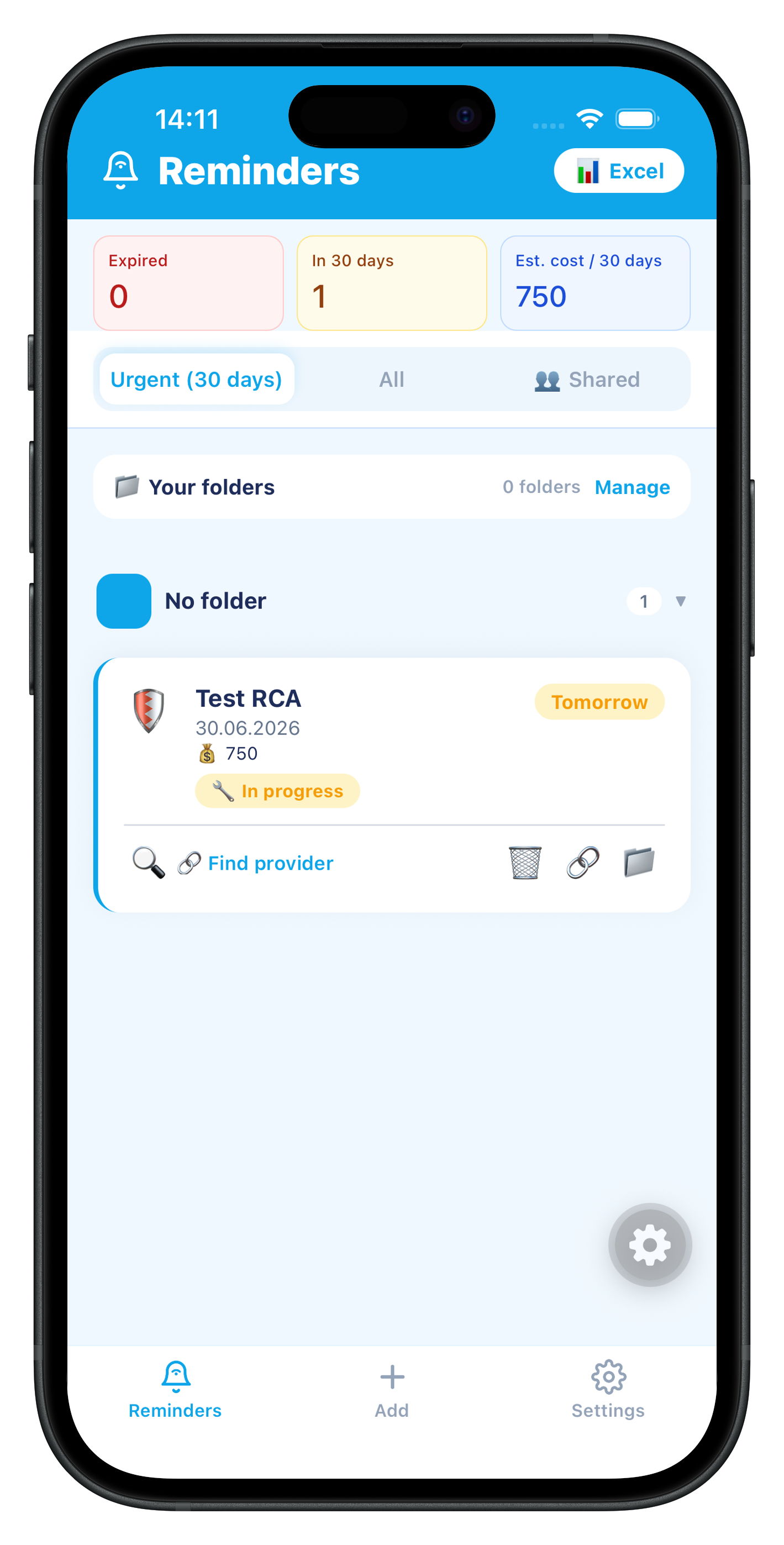
| Button | Action |
|---|---|
| 🗑️ | Delete the reminder |
| 🔄 | Renew (shown on expired reminders — prefills a new reminder with the same details) |
| 🔍 | Find a provider (opens a web search for renewal services in your area) |
| 🔗 | Share a public link (valid 7 days) |
| 📁 | Move to a folder |
| 🎂 | Send a birthday card (shown on birthday events) |
Use the tabs below the statistics card to filter: Urgent (expiring soon), All, and 👥 Shared (reminders shared with your groups).
Tap the + Add tab at the bottom. Choose one of three types:
| Type | Use for |
|---|---|
| 📋 Expiry | Documents with a fixed expiry date (ID card, car insurance, ITP, etc.) |
| 🔁 Recurring | Repeating expenses — daily, weekly, every 2 weeks, or monthly |
| 📅 Event | One-time events with a specific date and time (birthdays, appointments) |
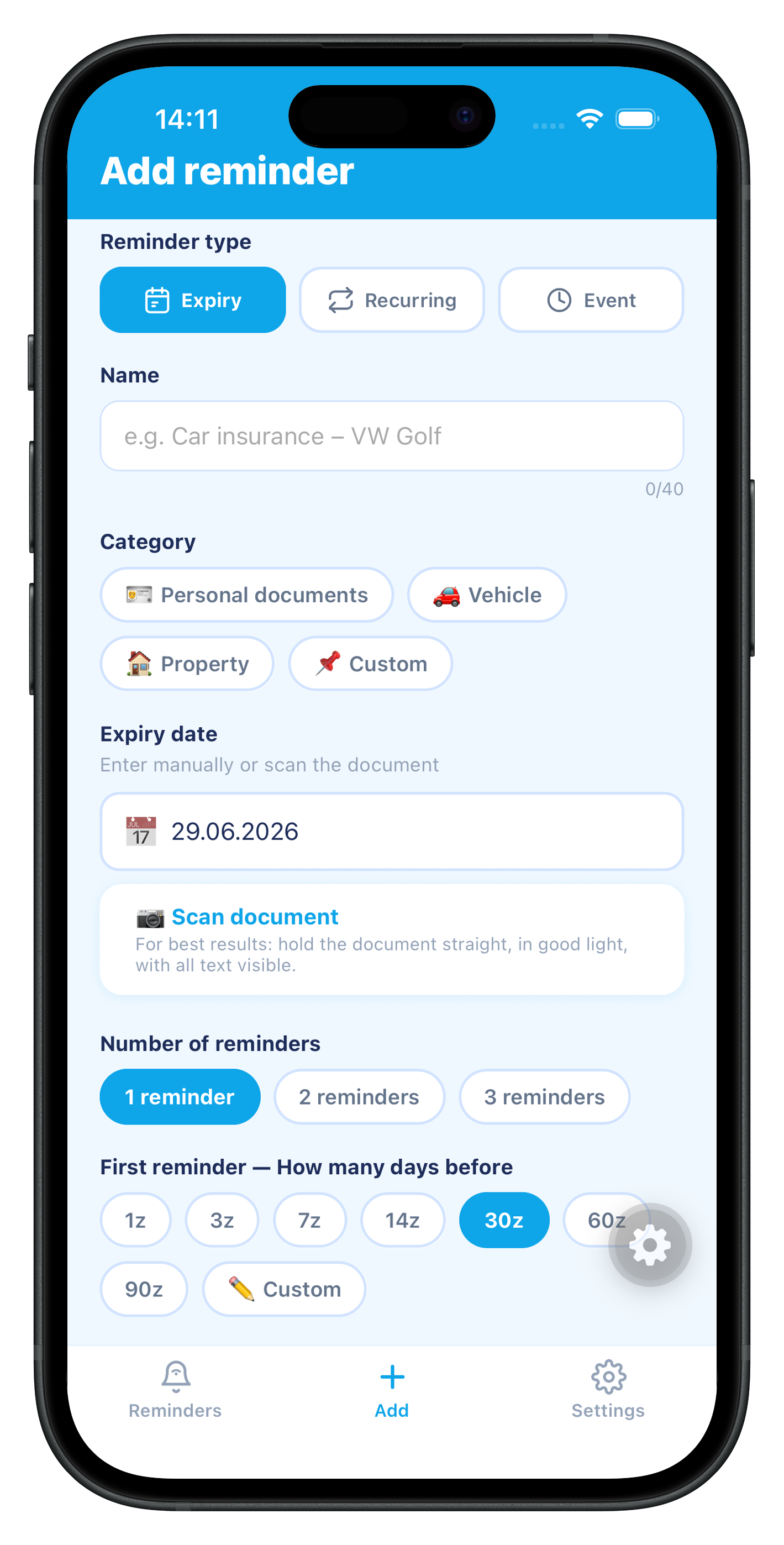
For Expiry reminders, tap the 🔍 Scan document hint below the expiry date field. You can take a photo or choose from your gallery. The app uses optical character recognition (OCR) to detect and fill in the expiry date automatically.
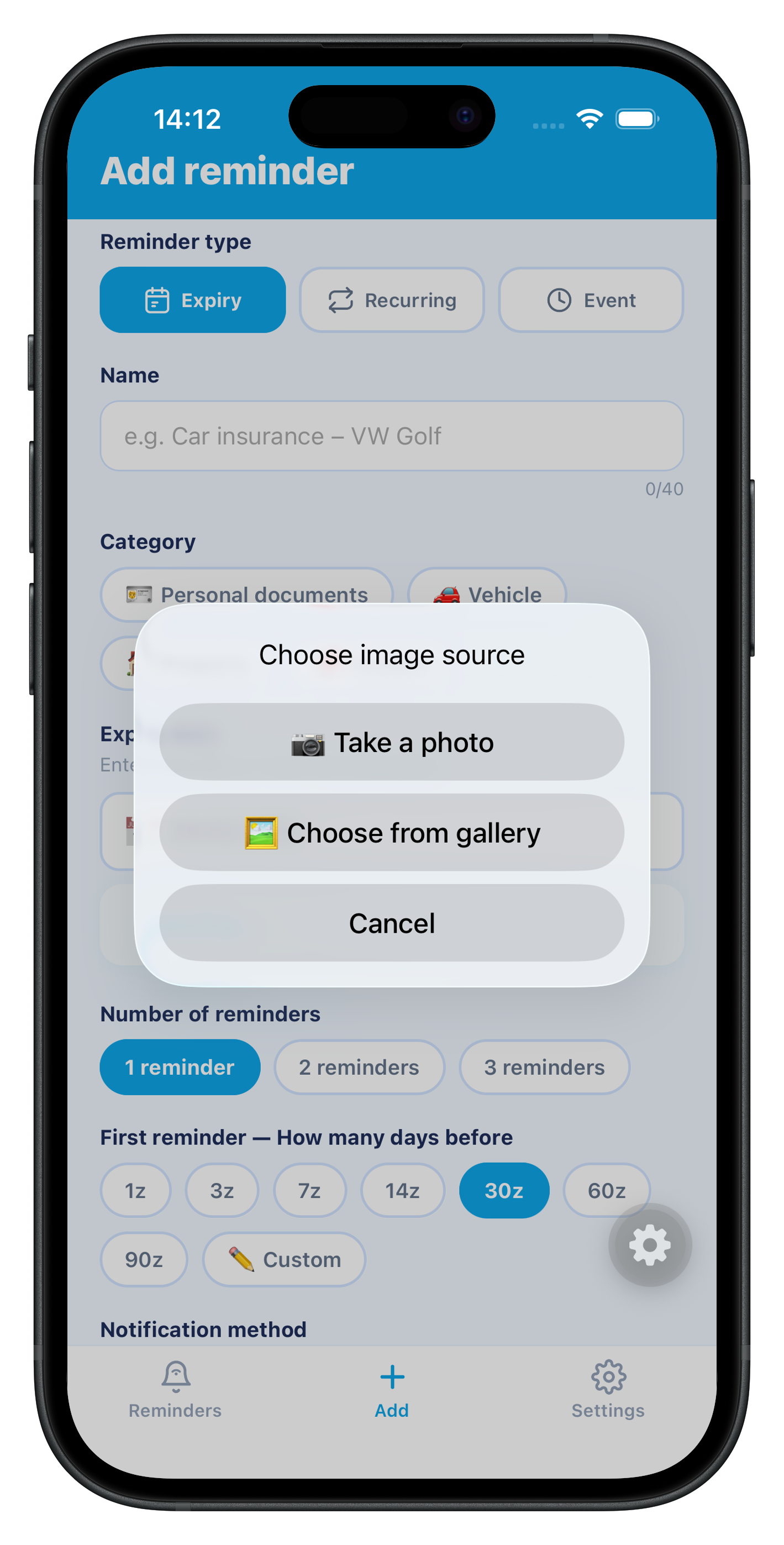
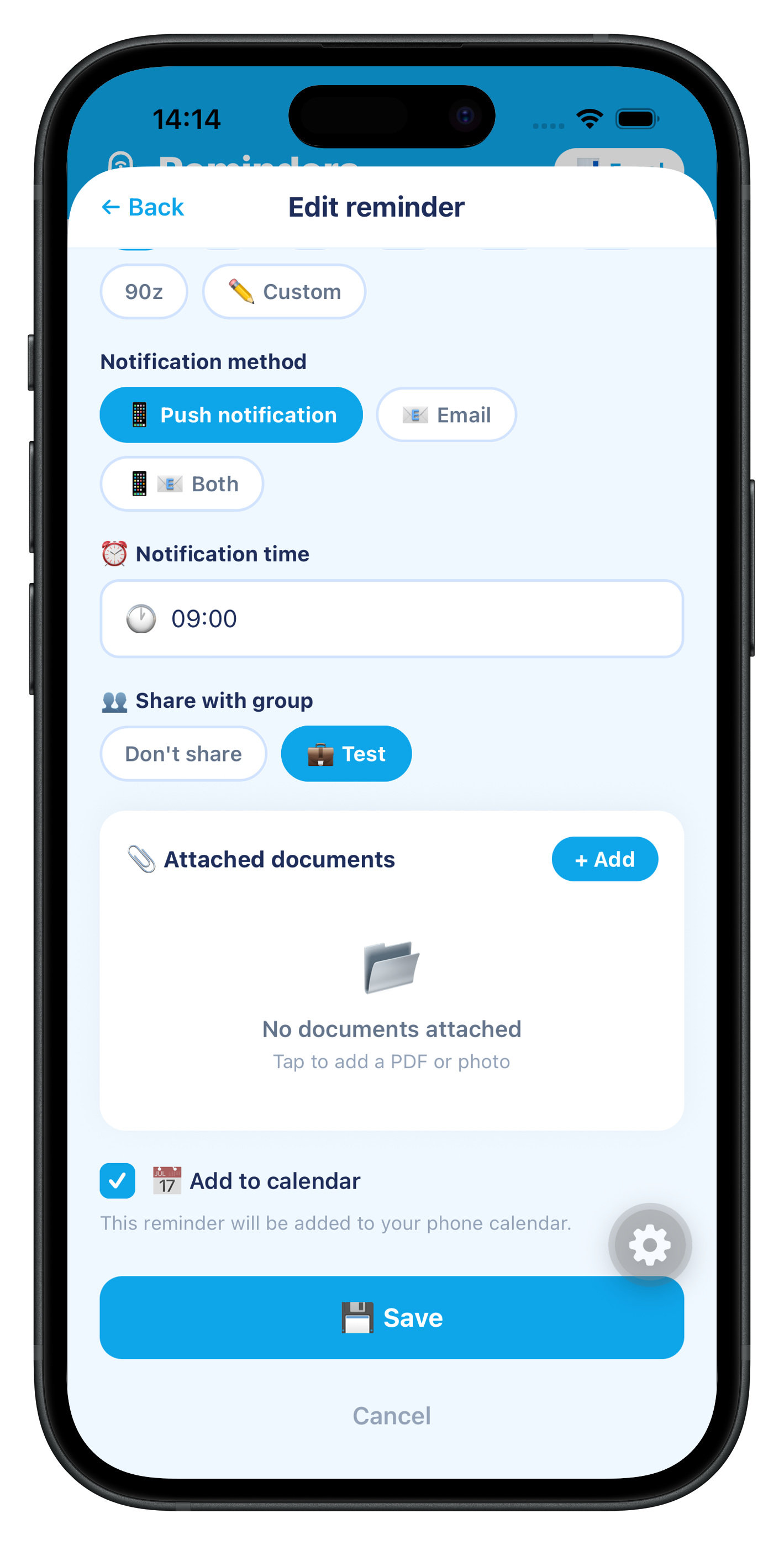
You can attach one or more photos of the document (e.g. ID, insurance policy, certificate) directly from the form — tap 📎 Attach document, then choose to take a photo or select one from your gallery. Attached documents remain visible when you later edit the reminder and can be removed individually.
You can optionally enter the estimated renewal cost. This value is used in the Dashboard statistics to calculate your total estimated expenses for the next 30 days.
Folders let you organize your reminders by category — for example: Car, Home, Birthdays.
On the Dashboard, tap the 📁 icon in the top-right toolbar. In the folder manager that opens, type a name, choose an emoji icon (or leave it blank for a solid color square), and pick a color from the palette. Tap Create.
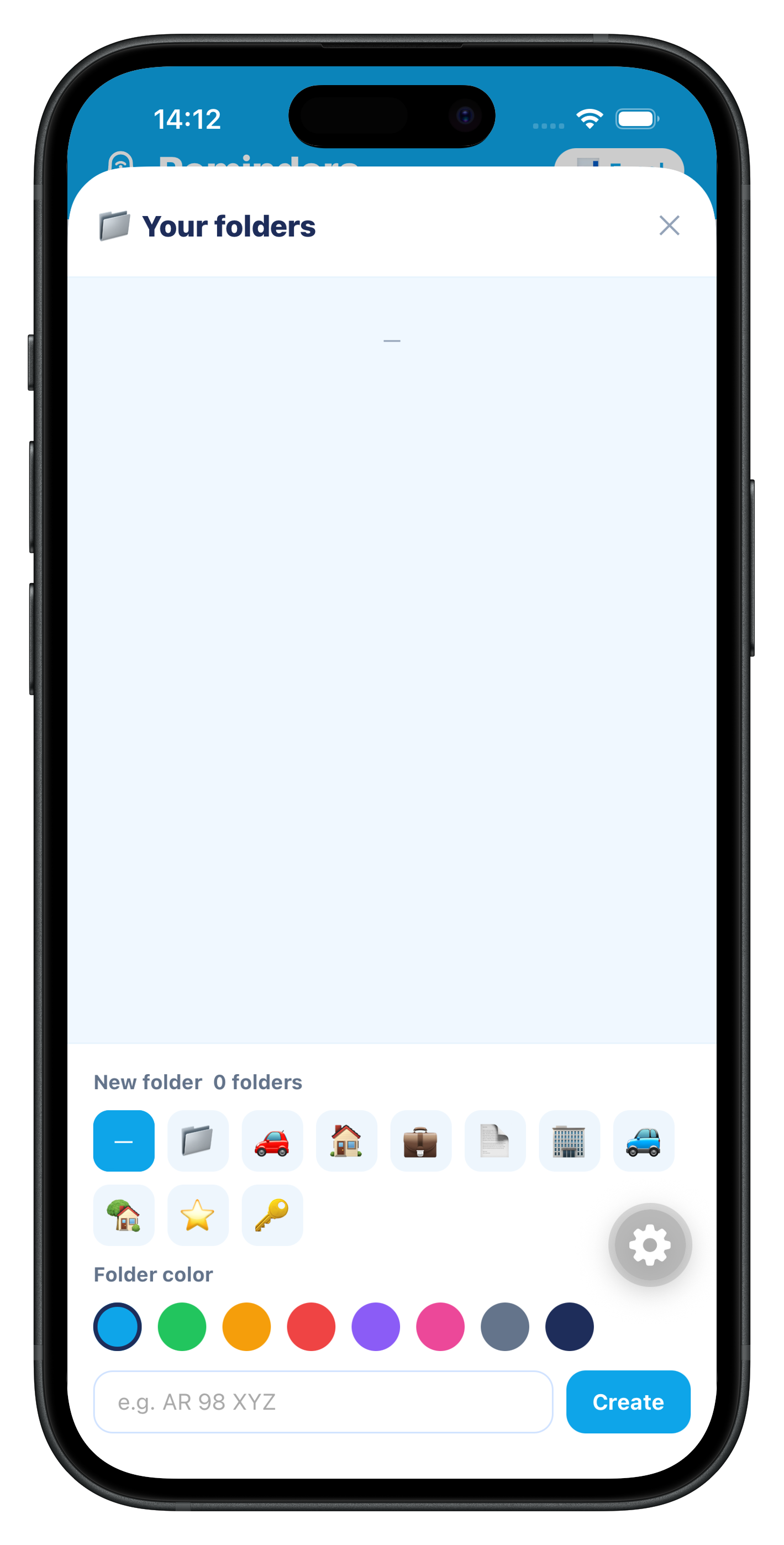
Tap the 📁 button at the bottom of any reminder card and select the destination folder.
In the folder manager, tap ✏️ next to a folder to rename it, change its icon or color. Tap 🗑️ to delete it (reminders inside are not deleted — they become unfoldered).
For Expiry and Recurring reminders, choose how you want to be notified:
| Method | Description |
|---|---|
| 📱 Push | Direct phone notification at the chosen time |
| Email sent to your account address or a custom one | |
| 📱📧 Both | Both push and email |
Monthly email allowance by plan: Free: 0 Standard: 20/month Premium: 150/month. Once the monthly limit is reached, only push notifications remain available until the next billing cycle.
Tap the 🔗 button on any Expiry reminder card. The app generates a unique public link and opens your phone's share sheet — you can send it via WhatsApp, SMS, email, or any other app.
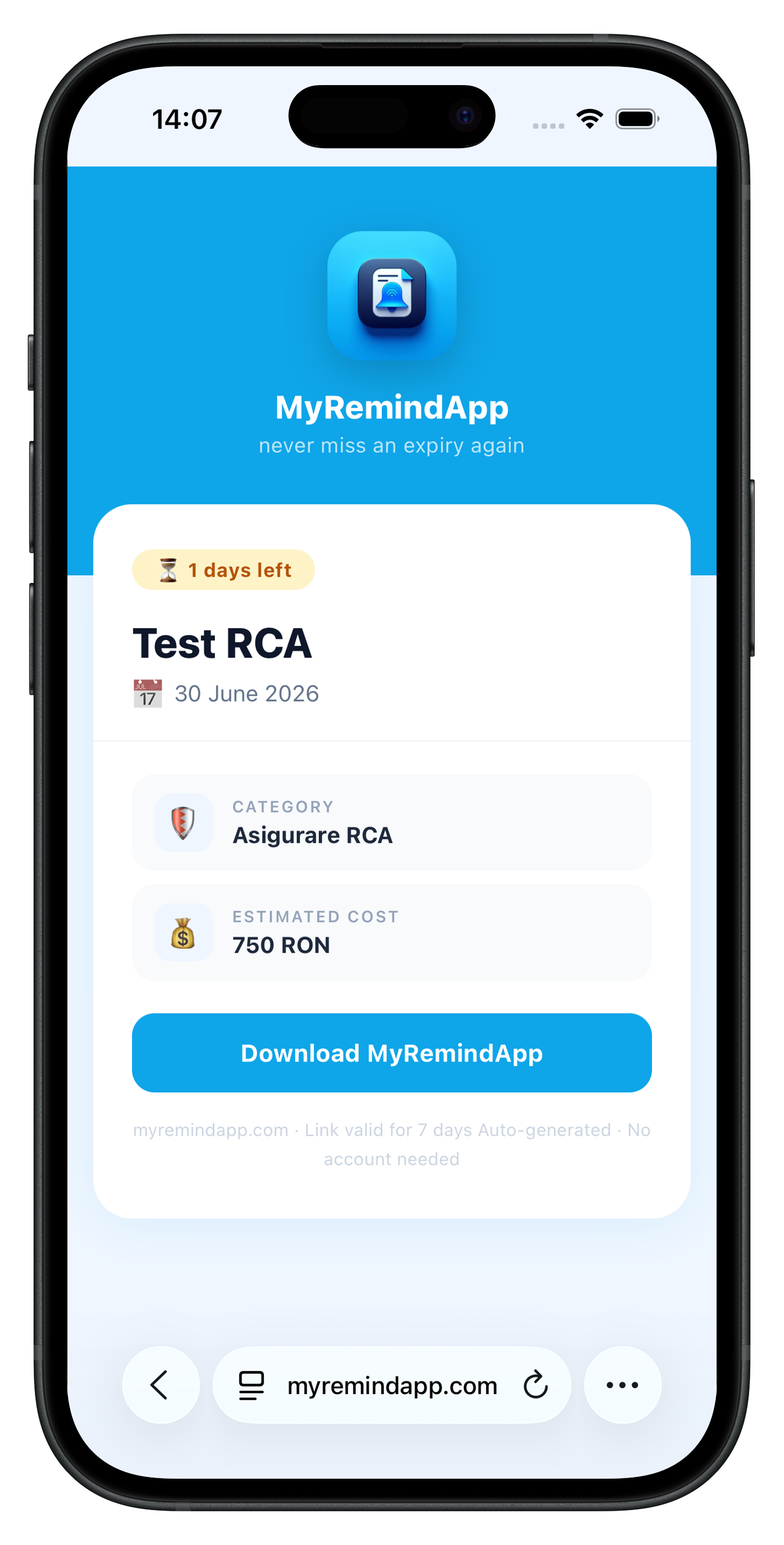
The recipient opens the link in their browser and sees a page with the reminder details (name, category, expiry date, days remaining, city, and estimated cost). No account is required to view a shared reminder.
Links expire automatically after 7 days.
Create an Event → 🎂 Birthday reminder for someone. On their card in the Dashboard, tap the 🎂 button to open the card generator.
Choose from 9 templates — Classic, Fun, Minimal, Beer, Champagne, Comic, Rock, Gold Elegant, and Party. The card text adapts automatically to your app language (Romanian or English).
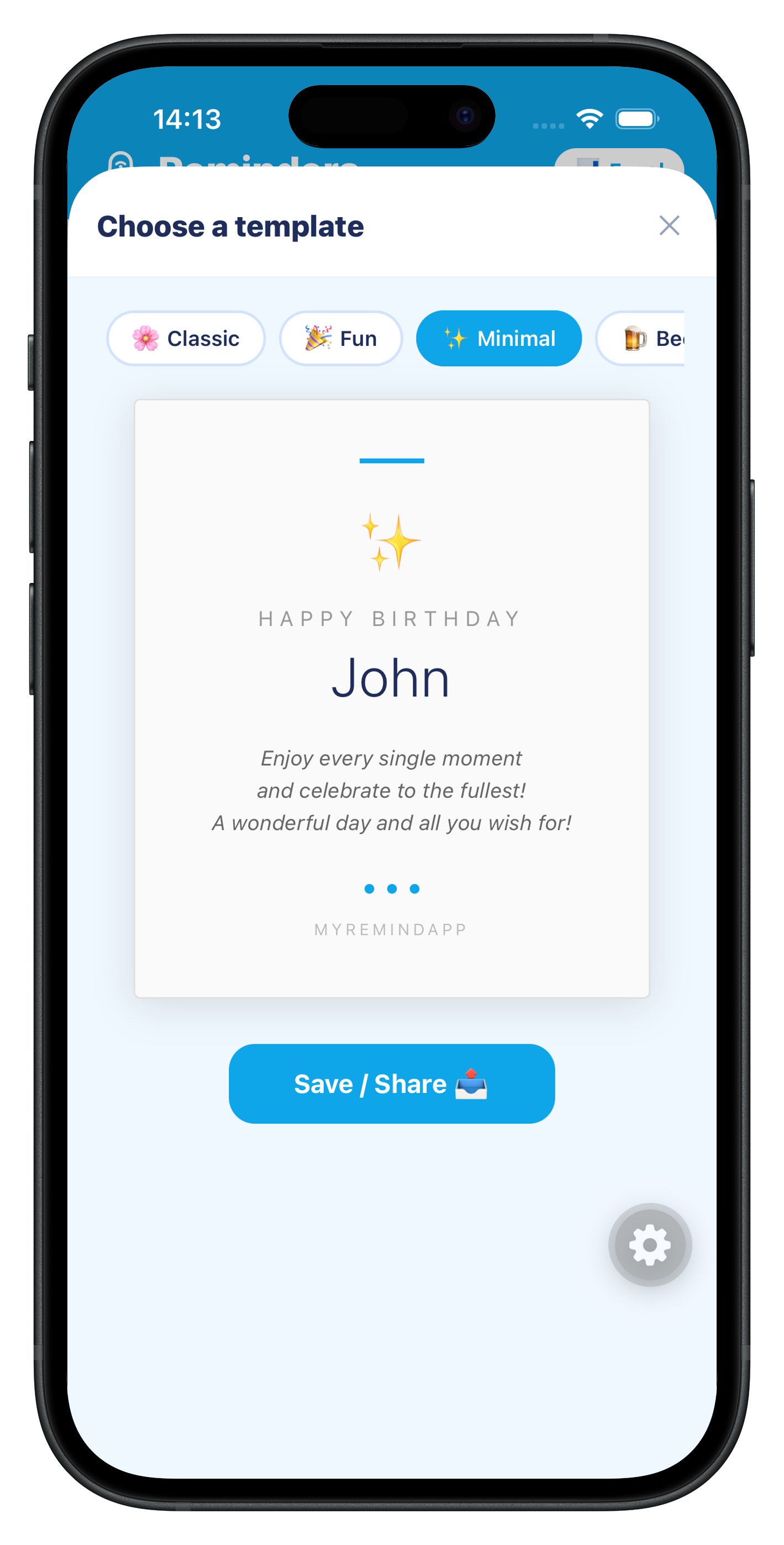
Tap Save / Share 📤 to capture the card as an image and open your phone's share sheet — you can send it via WhatsApp, save it to your gallery, or share it anywhere.
Check 📅 Add to calendar when adding or editing a reminder so it also appears in your phone's Calendar app:
From Settings → My groups, create a group (Family, Friends, Neighbors, Colleagues) and invite members by their account email.
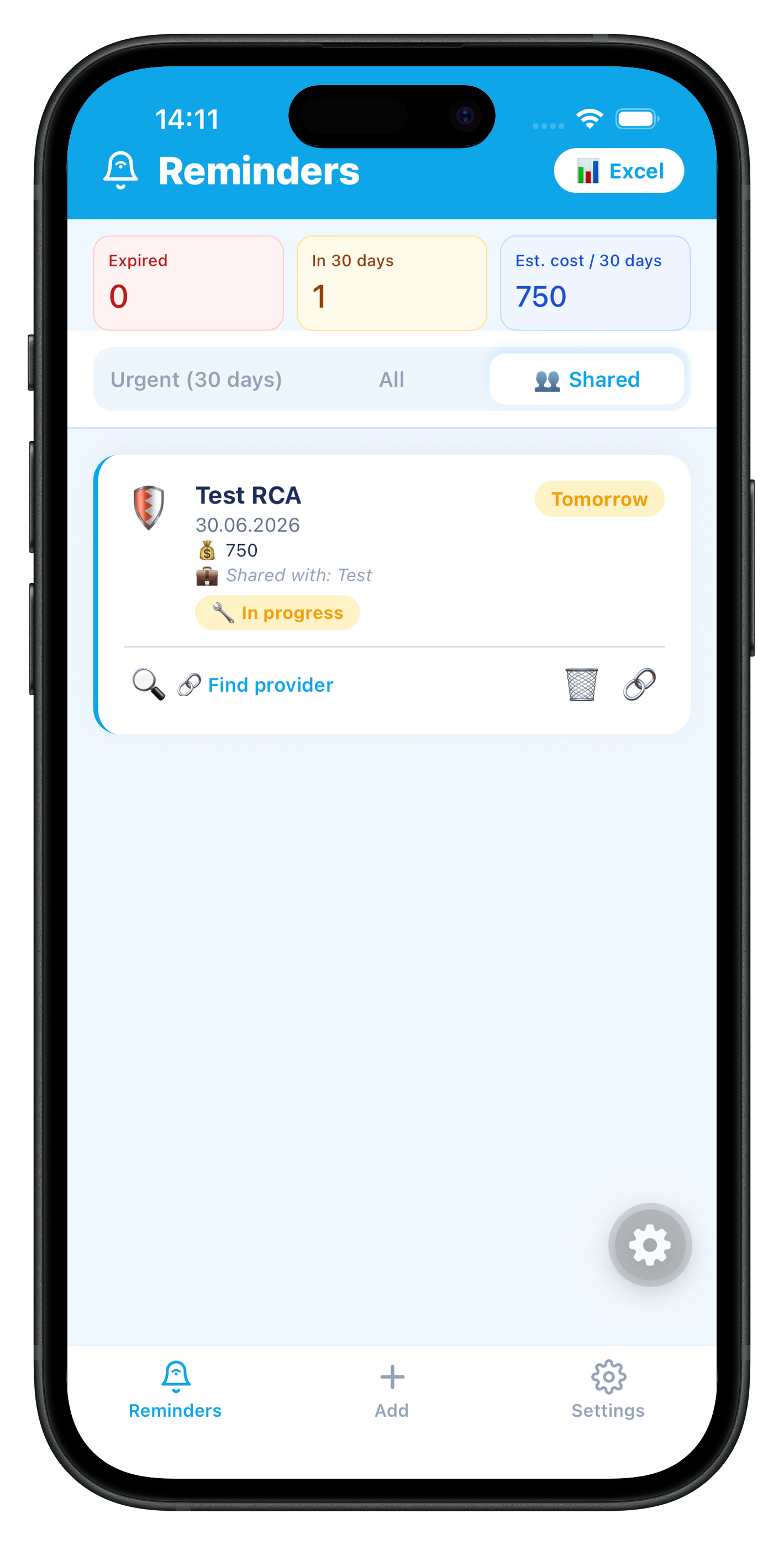
When adding or editing an Expiry or Recurring reminder, choose "Share with group". The reminder appears for all members in the 👥 Shared tab.
| Feature | Free | Standard €2.99/month | Premium €5.99/month |
|---|---|---|---|
| Expiry reminders | 5 | 10 | 100 |
| Recurring reminders | 3 | 10 | 50 |
| Emails/month | — | 20 | 150 |
| Push notifications | ✓ | ✓ | ✓ |
| OCR document scanning | ✓ | ✓ | ✓ |
| Share reminder link | ✓ | ✓ | ✓ |
| Birthday cards | ✓ | ✓ | ✓ |
| Dark mode | ✓ | ✓ | ✓ |
| Folders | — | 3 | Unlimited |
| Excel export | — | ✓ | ✓ |
| Calendar sync | — | ✓ | ✓ |
| Create shared groups | — | ✓ | ✓ |
| Direct email to provider | — | — | ✓ |
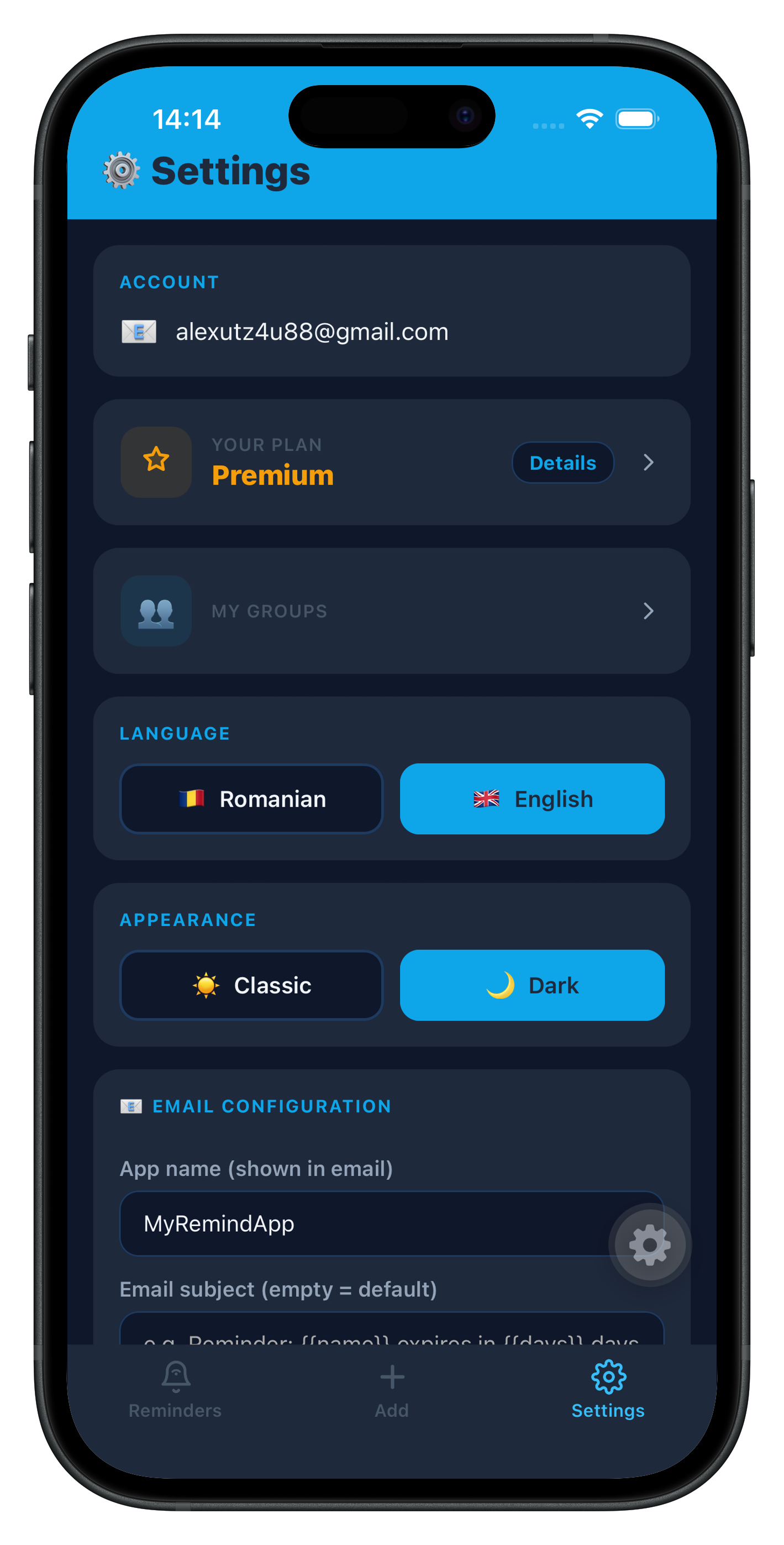
From the Settings screen you can:
Check that you've allowed notifications for MyRemindApp in your phone's Settings. Push notifications only work on a physical device, not in a simulator.
Emails are sent once a day at the configured time. Also check your Spam/Promotions folder. Make sure your plan includes email notifications (Standard or Premium).
No — a reminder shared by another group member is view-only. The only action available is marking it "Resolved" or "In progress".
Links expire after 7 days. Ask the sender to generate a new link from the reminder card.
No — folders are available from the Standard plan onwards (3 folders) and are unlimited on Premium.
Documents are saved locally and don't transfer automatically. We recommend saving them separately before switching devices.
From the Dashboard, tap the 📊 Excel button (top-right toolbar) to generate an .xlsx file with all your reminders — name, category, expiry date, status, city, country, and estimated cost — which you can save or send to yourself.
Available on Standard and Premium plans.